- Forguncy | 포건시
- 시작하기
- 데이터베이스
- 페이지&데이터 바인딩
- 웹페이지 구성
-
명령 및 동작
- 명령
- 서버단 명령
- 재사용 명령
- 예약 작업
- 워크플로우
- 로컬 실행 및 디버깅
-
자바 스크립트 프로그래밍
- CSS 사용하기
- JavaScript 사용
- 작업 페이지
- 작업 셀
- 작업 리스트뷰
- JavaScript 및 CSS 코드 디버그
-
JavaScript API 인덱스
- Forguncy 인터페이스
- Forguncy 매서드
- Forguncy 열거형
- Forguncy 클래스
- 다국어
- 배포 및 권한
- 포건시 서버
- 공동작업
- 플러그인
getImageEditorUploadImageFolderPath 메소드
메서드
SpecialPath.getImageEditorUploadImageFolderPath()
설명
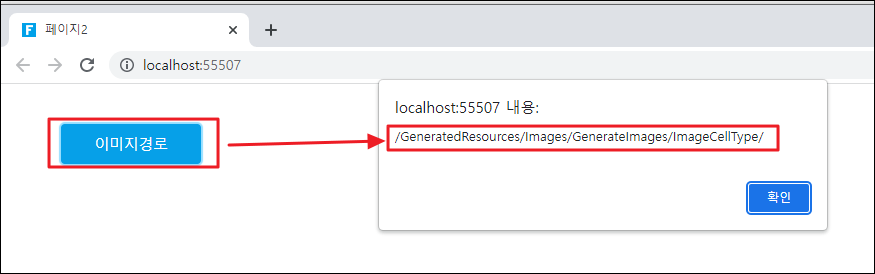
이미지 셀 유형을 사용하여 사진을 선택할 때 업로드된 이미지 있는 폴더의 경로를 가져옵니다.
매개 변수
없음
반환값
string
예제
다음 예제 코드에서는 getImageEdiorUploadImageFolderPath 메서드를 사용하여 이미지가 업로드된 폴더의 경로를 가져옵니다.
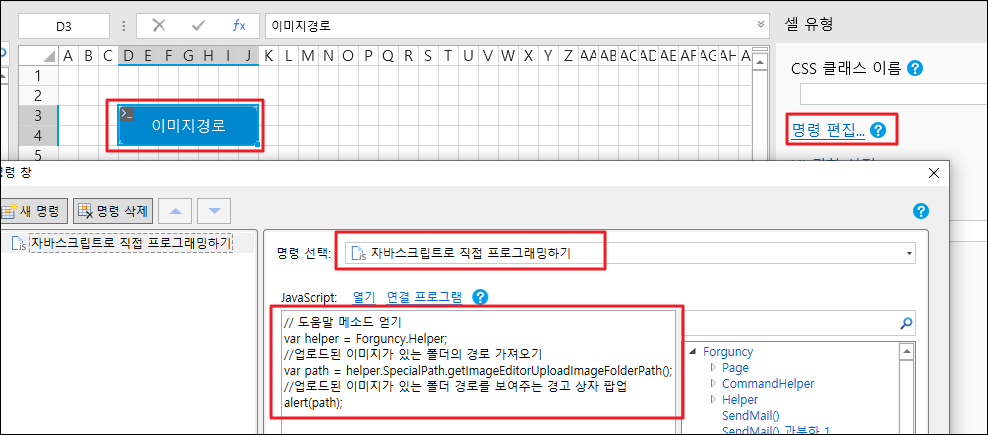
// 도움말 메소드 얻기
var helper = Forguncy.Helper;
//업로드된 이미지가 있는 폴더의 경로 가져오기
var path = helper.SpecialPath.getImageEditorUploadImageFolderPath();
//업로드된 이미지가 있는 폴더 경로를 보여주는 경고 상자 팝업
alert(path);
사용 예제
- 페이지에서 셀 범위를 선택하고, 셀 유형을 버튼으로 설정하고, 명령을 [자바스크립트로 직접 프로그래밍하기]으로 편집하고, JavaScript 코드를 입력합니다.
- 페이지를 실행합니다.버튼을 클릭하면 이미지가 업로드된 폴더의 경로를 보여 주는 경고 상자가 나타납니다.