- Forguncy | 포건시
- 시작하기
- 데이터베이스
- 페이지&데이터바인딩
- 웹페이지 구성
- 명령 및 동작
- 포건시서버
- 배포 및 권한
- 공동작업
-
플러그인
- 플러그인 설치하기
-
플러그인 사용하기
- 셀유형 플러그인
-
명령유형 플러그인
- JSON 데이터소스 가져오기(JSONDataSource)
- JSON 직렬화/역직렬화 명령 (JSonUtilityCommand)
- 이미지뷰어 명령(ImageViewerCommand)
- 로딩 표시 시작 (LoadingCommand)
- 셀 위치 설정 명령 (SetCellLocationCommand)
- 현재 행 설정 변경 (SetCurrentRowCommand)
- 리스트뷰로 데이터 전달(PassListviewDataCommand)
- 리스트뷰 새로고침 명령 (ReloadListViewComand)
- CSV 가져오기와 내보내기(ImportExportCSV)
- 워크플로우 명령 (WorkflowCommand)
- 사용자 관리 기능 (UserManagementCommand)
- Post 데이터 명령(SendHTTPRequestCommand)
- 포커스 설정 명령 (SetFocusCommand)
- 서버 파일 관리 (Operate Filescommand)
- 암호화 및 복호화 알고리즘(EncryptDecryptCommand)
- MS 팀즈에 메세지 전송 (TeamsWebHookCommand)
- 대기명령 (SleepCommand)
- 운영체제 정보 확인 (DetectOSInfoCommand)
- 추적 프로세스 상태
- WebSocket클라이언트 명령
- 스마트폰 QR코드 스캔 명령
- Office 365 로그인(Office365LoginCommand)
- 목표값 찾기(GoalSeek) 수식
- 사용자 관리 명령 V2 (UserManagementCommand)
- 데이터베이스 연결 플러그인
- 플러그인 개발하기
JSON 데이터소스 가져오기(JSONDataSource)
JSON 데이터 소스 가져오기 명령은 JSON의 내용을 리스트뷰나 셀로 추출할 수 있는 플러그인입니다.
플러그인 다운로드
버전에 맞는 플러그인을 다운로드 합니다.
| 버전 | 다운로드 링크 |
|---|---|
| v 9.0 | JsonDataSource.zip |
| v 7. 1 | JsonDataSource.zip |
| v 7. 0 | JsonDataSource.zip |
| v 6. 1 | JsonDataSource.zip |
사용 방법
- 플러그인을 다운로드합니다.
- Forguncy Builder에서 설치하고 Forguncy Builder를 다시 실행합니다.
- 데이터 테이블을 아래와 같이 만들어줍니다.
| 필드명 | 필드속성 |
|---|---|
| name | Text |
| age | Text |
| secretIdentity | Text |
| powers | Text |
4. 페이지에 여러줄 텍스트 셀유형, 3번에서 만든 데이터 테이블을 연결한 리스트뷰와
버튼을 만듭니다.
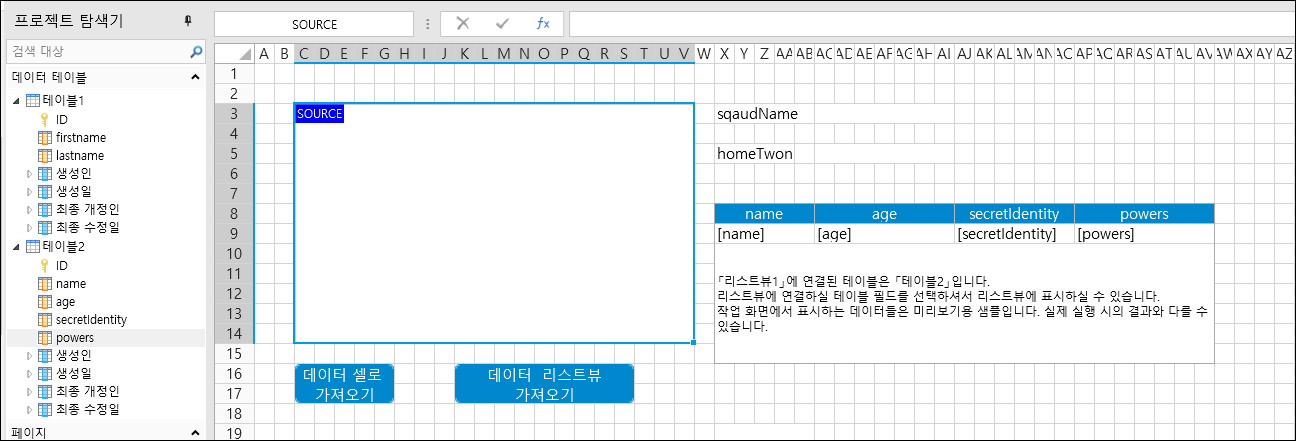
5. 명령창에 "JSON 데이터를 셀로 가져오기" 또 "JSON 데이터를 리스트뷰로 가져오기"를 선택합니다.
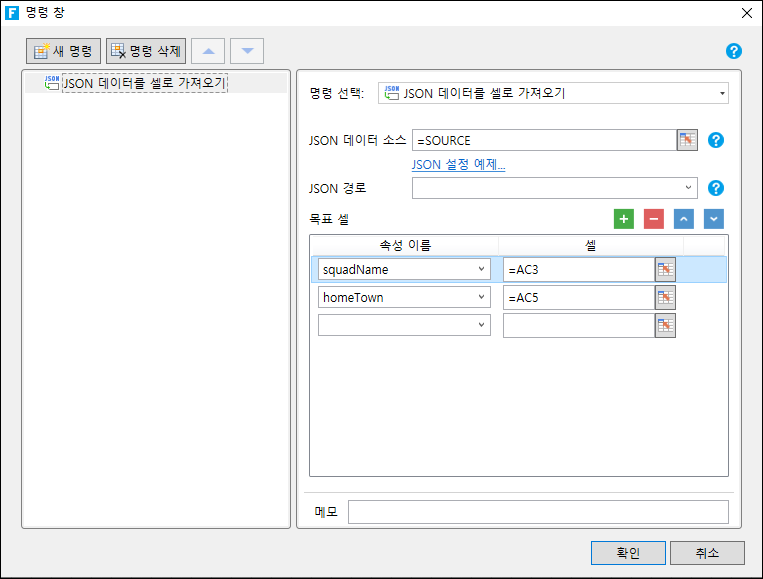
- JSON 데이터를 셀로 가져오기
| 항목 | 설명 |
|---|---|
| JSON 데이터 소스 | JSON 데이터 소스가 있는 셀 |
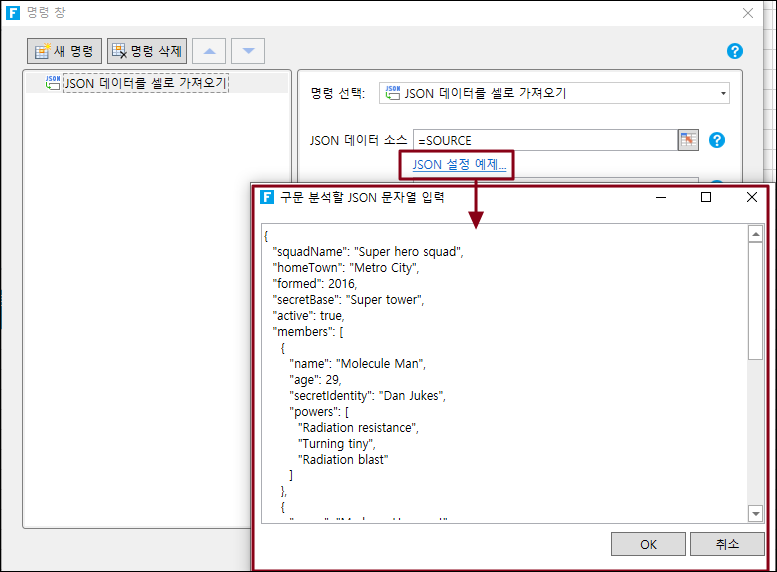
| JSON 설정 예제 | JSON 설정 예제를 입력하면 JSON 경로 및 목표 셀의 속성 이름에 속성이 나타남 |
| JSON 경로 | JSON 경로 |
| 속성 이름 | JSON 속성 경로 |
| 셀 | 속성 경로가 입력될 셀 |
- JSON 데이터를 리스트뷰로 가져오기
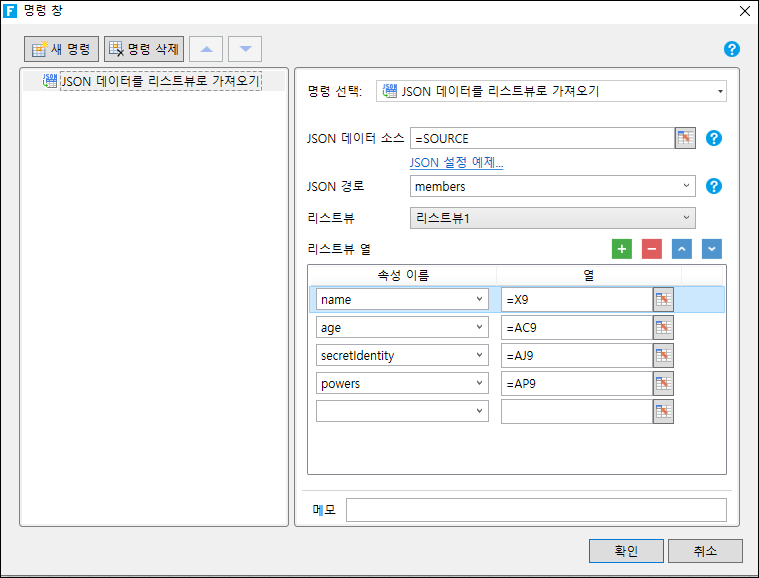
| 항목 | 설명 |
|---|---|
| JSON 데이터 소스 | JSON 데이터 소스가 있는 셀 |
| JSON 설정 예제 | JSON 설정 예제를 입력하면 JSON 경로 및 목표 셀의 속성 이름에 속성이 나타남 |
| JSON 경로 | JSON 경로 |
| 리스트뷰 | JSON 데이터를 가져올 리스트뷰 |
| 속성 이름 | JSON 속성 경로 |
| 셀 | 속성 경로가 입력될 리스트뷰의 셀 |
6. 실행을 하고 여러줄 텍스트에 아래 코드를 입력합니다.
{
  "squadName": "Super hero squad",
  "homeTown": "Metro City",
  "formed": 2016,
  "secretBase": "Super tower",
  "active": true,
  "members": [
    {
      "name": "Molecule Man",
      "age": 29,
      "secretIdentity": "Dan Jukes",
      "powers": [
        "Radiation resistance",
        "Turning tiny",
        "Radiation blast"
      ]
    },
    {
      "name": "Madame Uppercut",
      "age": 39,
      "secretIdentity": "Jane Wilson",
      "powers": [
        "Million tonne punch",
        "Damage resistance",
        "Superhuman reflexes"
      ]
    },
    {
      "name": "Eternal Flame",
      "age": 1000000,
      "secretIdentity": "Unknown",
      "powers": [
        "Immortality",
        "Heat Immunity",
        "Inferno",
        "Teleportation",
        "Interdimensional travel"
      ]
    }
  ]
}
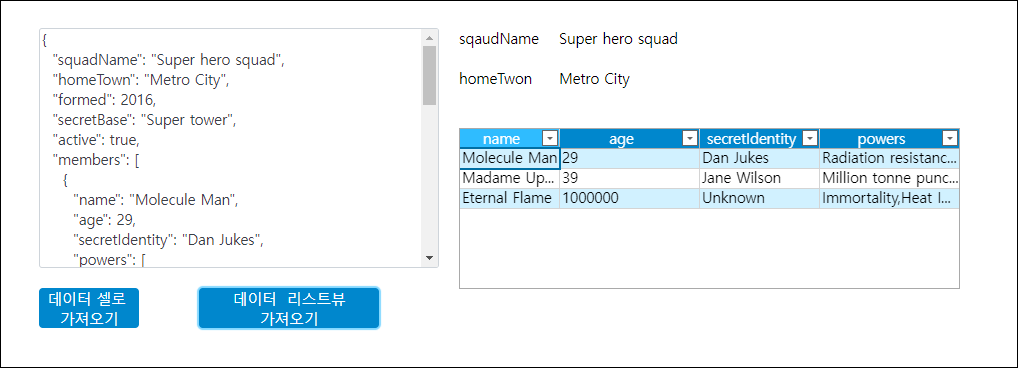
"데이터 셀로 가져오기" 와 "데이터 리스트뷰 가져오기" 버튼을 클릭하면 아래와 같이 셀과 리스트뷰에 JSON 데이터를 가져오는 것을 확인할 수 있습니다.