- Forguncy | 포건시
- 시작하기
- 데이터베이스
- 페이지&데이터바인딩
- 웹페이지 구성
-
명령 및 동작
- 명령
- 서버단 명령
- 예약 작업
- 워크플로우
- 로컬 실행 및 디버깅
-
자바 스크립트 프로그래밍
- CSS 사용하기
- JavaScript 사용
- 작업 페이지
- 작업 셀
- 작업 리스트뷰
- JavaScript 및 CSS 코드 디버그
-
JavaScript API 인덱스
- Forguncy 인터페이스
- Forguncy 매서드
- Forguncy 열거형
-
Forguncy 클래스
- CellEvents클래스
- Cell 클래스
- CommandHelper 클래스
- ForguncyCommandHelper클래스
- ListViewEvents 클래스
- ForguncyHelper 클래스
-
ListView 클래스
- addNewRow 메서드
- addSelectedRow 메서드
- bind 메서드
- clearAllSelectedRows 메서드
- clearSelectedRowByQuery 메서드
- clearSelectedRow 메서드
- deleteRow 메서드
- getDataTableName 메서드
- getDesignerRangeInfo 메서드
- getMergedColumnInfos 메서드
- getName 메서드
- getPaginationInfo 메서드
- getQuery 메서드
- getRowCount 메서드
- getSelectedRowIndexs 메서드
- getSelectedRowIndex 메서드
- getSelectedRowsData 메서드
- getText 메서드
- getValue 메서드
- goToFirstPage 메서드
- goToLastPage 메서드
- goToNextPage 메서드
- goToPreviousPage 메서드
- goToSpecifiedPage 메서드
- usePaginationDisplay 메서드
- hiddenLoadingIndicator 메서드
- showLoadingIndicator 메서드
- isSelectedRow 메서드
- reload 메서드
- selectAllRows 메서드
- selectRow 메서드
- setText 메서드
- setValue 메서드
- unbind 메서드
- unbindAll 메서드
- hideColumns 메서드
- showColumns 메서드
- clearAllColumnFilters 메서드
- getRunTimePageName 메서드
- PageEvents 클래스
- Page 클래스
- PivotTableCellType 클래스
- PivotTableEventParameter 클래스
- PivotTableHeaderInfo 클래스
- SpecialPath 클래스
- SubPage 클래스
- Page 변수
- 다국어
- 재사용 명령
- 포건시서버
- 배포 및 권한
- 공동작업
- 플러그인
bind 메서드
메서드
ListView.bind(type, data, fn)
설명
선택한 리스트뷰에 하나 이상의 이벤트 처리기를 추가하고 이벤트가 발생할 때 실행되는 함수를 지정합니다.
매개 변수
| 매개변수 | 형식 | 필수여부 | 설명 |
|---|---|---|---|
| type | string | Yes | 이벤트 형식을 나타내는 문자열입니다. 리스트뷰에서 지원되는 이벤트는 ListViewEvents 클래스 를 참조하십시오. |
| data | any | No | 이벤트 처리기에 전달된 사용자 지정 매개 변수를 무시하지 않는 경우 선택적 매개 변수입니다. |
| fn | function | Yes | 이벤트 처리기입니다. |
반환값
없음
예제
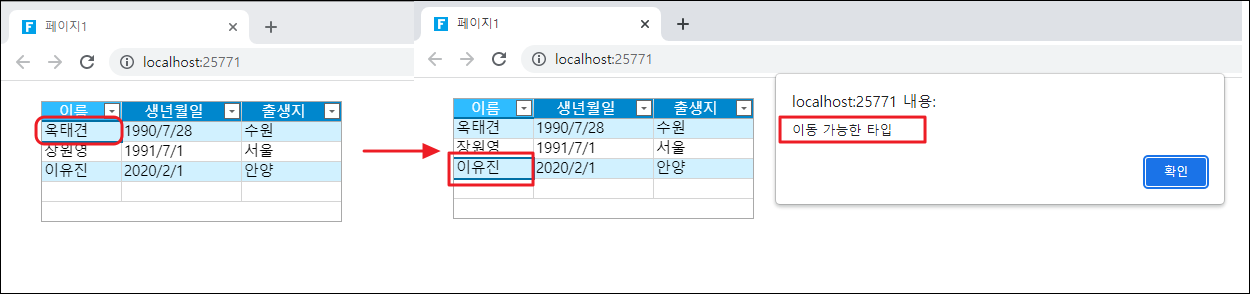
다음 예제 코드에서는 bind 메서드를 사용하여 리스트뷰에 현재 행 변경 이벤트 처리기를 추가하고 리스트뷰의 현재 행이 변경될 때 경고 상자가 나타납니다.
// 이벤트 핸들러에 사용자 정의 매개변수를 전달할 필요가 없습니다.
// 현재 페이지 가져오기
var page = Forguncy.Page;
//현재 페이지에서 리스트뷰 1이라는 리스트뷰를 가져옵니다.
var listview = page.getListView("리스트1");
//리스트뷰의 이벤트 바인딩
listview.bind("SelectionChanged", function () {
    alert("이동 가능한 타입");
});
사용 예제
- 페이지에서 범위를 선택하고, 데이터 테이블을 셀 범위로 드래그하고, 데이터 테이블의 필드를 바인딩하고, 각 열의 열 이름을 설정합니다.
- 페이지 설정에서 [페이지 로드 시 명령 편집]을 클릭하고 명령을 [자바스크립트로 직접 프로그래밍하기]으로 편집하고 JavaScript 코드를 입력합니다.
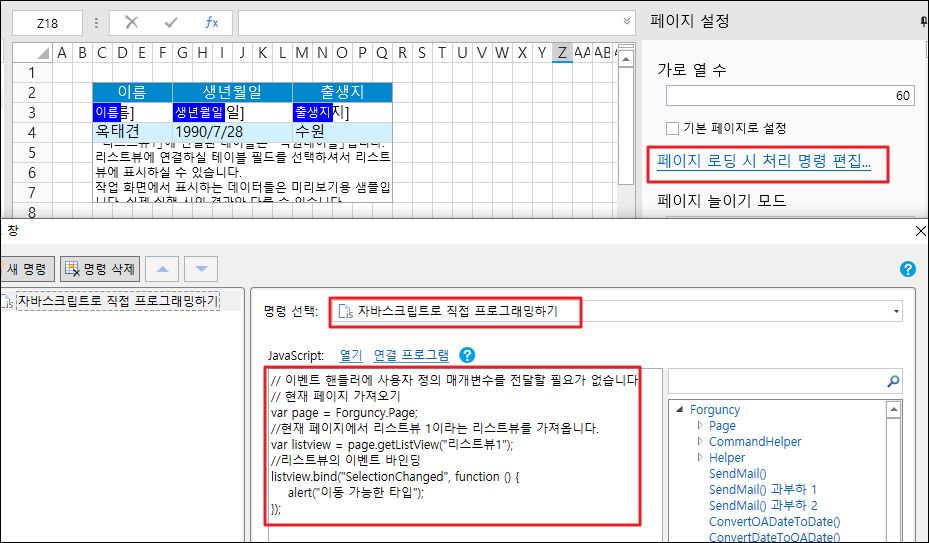
- 편집이 완료되면 [확인]을 클릭하여 대화 상자를 닫습니다.
페이지를 실행하고 테이블의 현재 행을 변경하면 경고 상자가 나타납니다.